Setting Up User Roles
Roles are the foundation of access control on your website. They allow you to define who can do what: for example, a moderator can ban violators, a VIP user gets access to exclusive sections, and a regular visitor can only see basic content.
Flute CMS uses an RBAC (Role-Based Access Control) system. This is a standard approach where instead of configuring permissions for each user individually, you create roles with the required permissions and then assign these roles to users.
Simple example: you create a “Moderator” role with permissions to ban users and delete messages, then assign this role to the needed users. If you later need to change moderator permissions, you just edit one role, and the changes apply to all moderators at once.
Editing roles requires admin.roles or admin.boss permissions.
Role System Basics
What is a Role?
A role is a set of permissions (access rights) that can be assigned to a user. Each role defines:
- Section access — which Admin Panel pages the user can see
- Available actions — what the user can do (create, edit, delete)
- Visual display — the role’s color and icon on the website
Examples of typical roles:
| Role | Purpose | Example Permissions |
|---|---|---|
| Administrator | Full site management | Access to all settings, user management |
| Moderator | Maintaining order | Banning users, deleting messages, viewing logs |
| VIP | Privileged access | Special nickname color, access to restricted sections |
| User | Basic access | Viewing content, writing messages |
Role Hierarchy
Roles in Flute CMS have a strict hierarchy:
- admin.boss — super administrator (full access to everything)
- Custom roles — created by the administrator (moderator, VIP, etc.)
- user — regular user (basic permissions)
A role with admin.boss permissions has absolute authority and cannot be restricted by other roles!
Creating and Configuring Roles
Creating a New Role
To create a role:
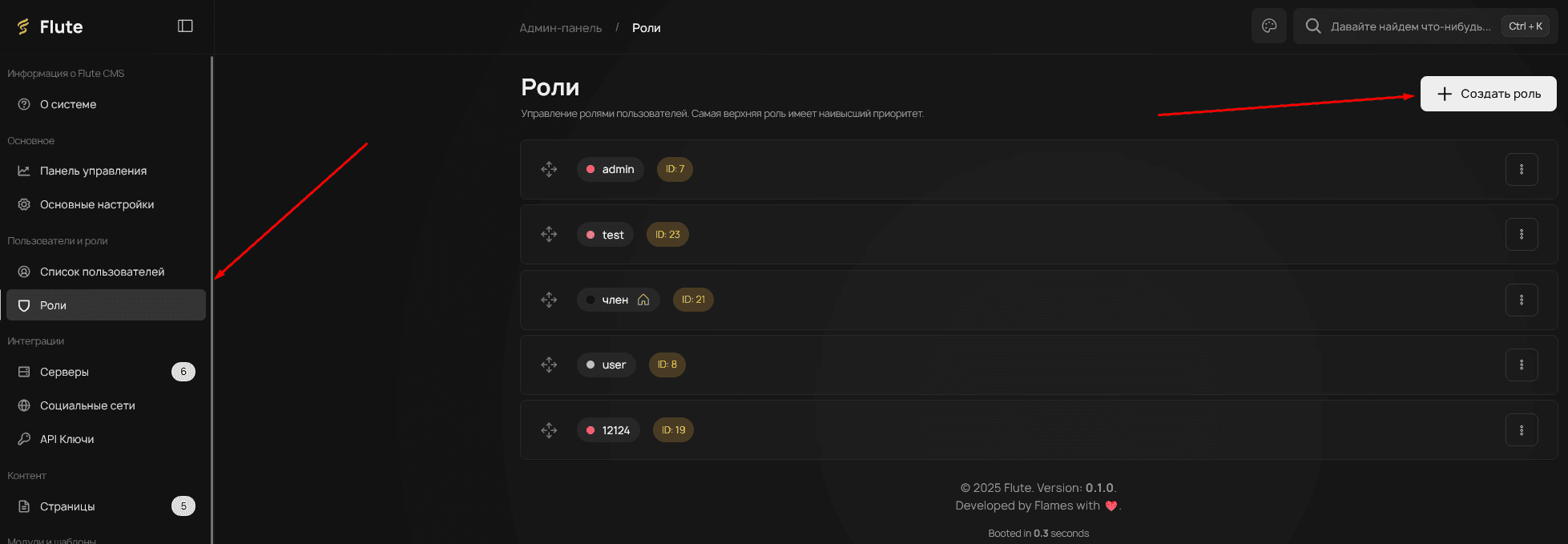
- In the Admin Panel sidebar, find the “Users and Roles” section and click “Roles”
- Click the ”+ Create Role” button in the upper right corner of the page
- Fill in the basic role information
On the roles page, you will see a list of all existing roles with the ability to drag and drop (to change priority), names, identifiers, and action buttons.
Basic Role Parameters
- Role name — Any role name (e.g., “Moderator”, “VIP”, “Editor”)
- Role color — the color that will highlight the role on the website (displayed in the user’s nickname and in lists)
- Icon — the role icon for visual distinction
All icons from FontAwesome and PhosphorIcons are automatically loaded for icon selection.
Permission System
Permission Categories
Each permission has its own description of what it controls. When creating or editing a role, you will see a full list of available permissions with explanations.
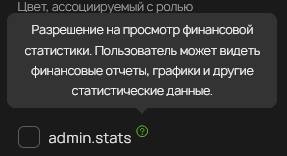
Be careful when granting permissions! Some permissions can give a user the ability to change critical site settings. It is recommended to grant only the permissions that are truly necessary for the role’s tasks.
Role Priority and Hierarchy
How Priority Works
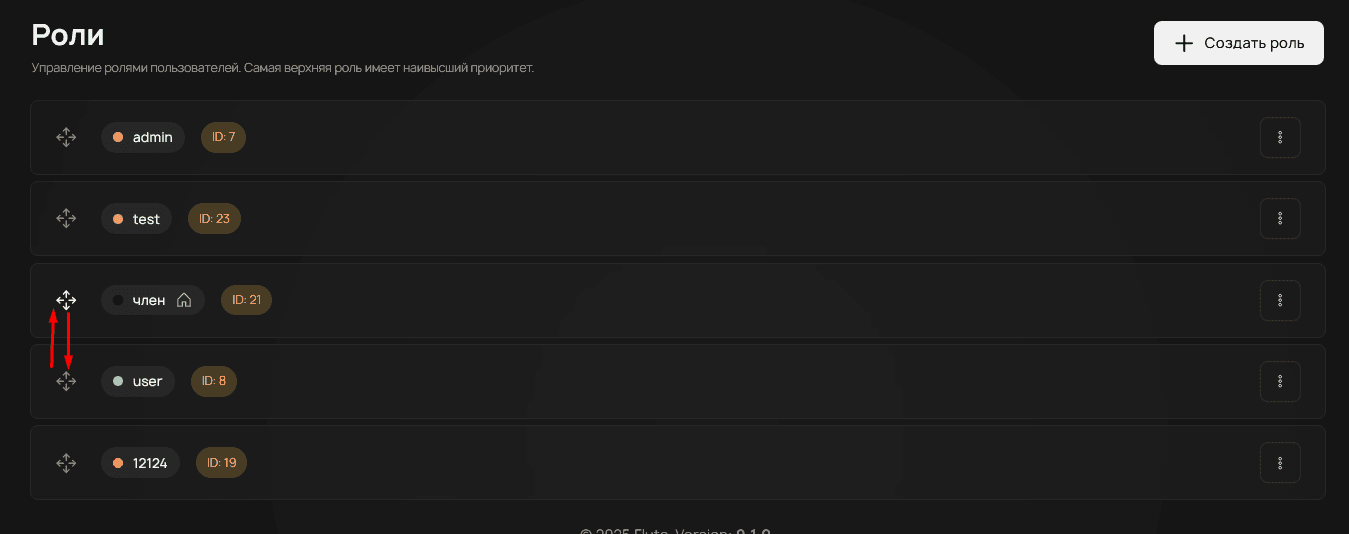
Role priority is determined by their order in the list:
- Highest priority — roles at the top of the list
- Lowest priority — roles at the bottom of the list
A user with a higher-priority role can manage users with lower-priority roles. For example, a moderator (higher priority) can manage regular users (lower priority), but cannot manage administrators (even higher priority).
Changing Priority
To change a role’s priority:
- Go to the role list
- Drag the role to the desired position (use the drag icon to the left of the name)
- Save the changes
A role with admin.boss permissions always has the highest priority!
Assigning Roles to Users
Assigning Through User Profile
- In the Admin Panel sidebar, find the “Users and Roles” section and click “User List”
- Find the desired user
- Click “Edit”
- In the “Roles” section, select the needed roles
- Save the changes
Multiple Roles
A user can have multiple roles simultaneously:
- Permissions are cumulative — the user receives all permissions from all their roles
- Priority is determined by the highest role — the role with the highest priority is used for display
If a user has both “Moderator” and “VIP” roles, they will receive permissions from both roles (both moderation and privileged access), but the role with the higher priority will be displayed.