Installing Custom Ranks
Ranks are player levels on the server, such as Silver, Gold Master, Global Elite in CS2, or administrator levels on game servers. Flute CMS displays these ranks on the website next to player profiles.
By default, Flute uses a standard set of rank icons, but they may not match the style of your community or specific game. Custom ranks allow you to upload your own icons that will precisely match the ranks on your server.
Uploading Icons
Preparing Images
- Create icons for each rank in any image format (WebP or SVG recommended)
- Name the files according to the rank numbers in the database
- Optimize the size — up to 10KB per file is recommended
Placing Files
- Navigate to the
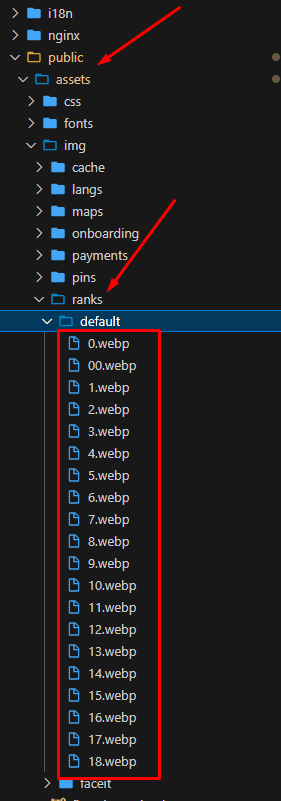
public/assets/img/ranks/folder - Create a folder with the name of your rank set
- Upload all prepared icons
- Make sure the file names correspond to the ranks
The file name must exactly match the rank name from the server database. For example, if the rank is called “1”, the file should be named “1.webp”.
File Structure
Create the following folder structure:
public/
  assets/
    img/
      ranks/
        your_rank_set_name/
          0.webp
          1.webp
          2.webp
          ...
          18.webp
After uploading ranks, the system will automatically add them to the Admin Panel.
Using Ranks
To use the uploaded ranks, simply select them in the list when editing or adding a specific server.
Editing a server requires admin.servers or admin.boss permissions.
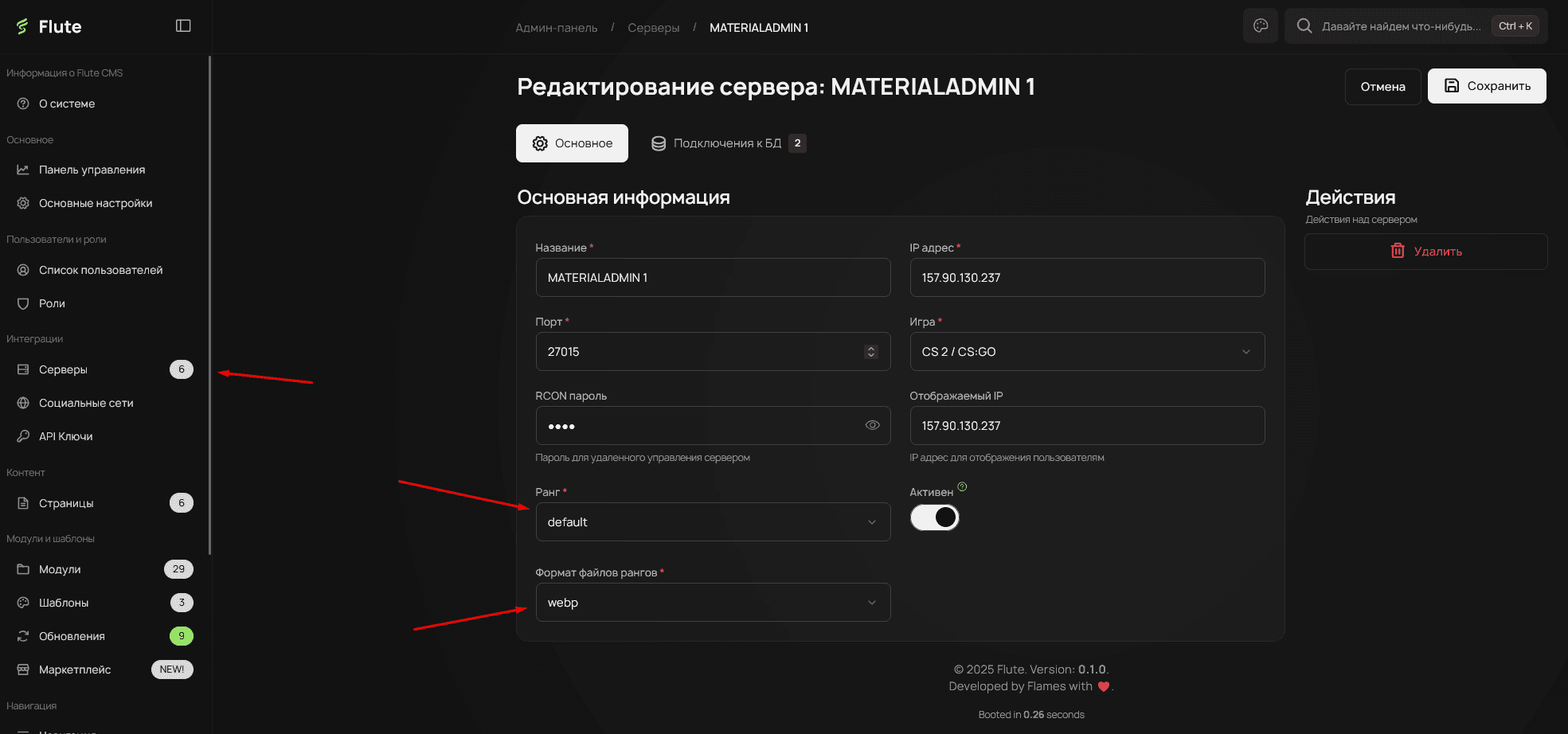
If your ranks don’t appear in the list, try clearing the Flute cache in the general settings.
After selecting a rank set, you will see a list of all available ranks: